
Website Accessibility: A Practical Guide for Businesses
Imagine visiting a business website and being unable to read the text comfortably, navigate the menu using a keyboard, or understand what a form is asking you to do.
The information you need might be available, but getting to it feels unnecessarily difficult.
For many people, this is a real experience rather than an occasional inconvenience. Website accessibility helps reduce these barriers by making digital content and functionality easier to perceive, understand, and use.
For businesses, this matters because a website is often the first place potential customers learn about a company, compare services, or request information. If visitors cannot use it comfortably, they may struggle to complete even a simple task.
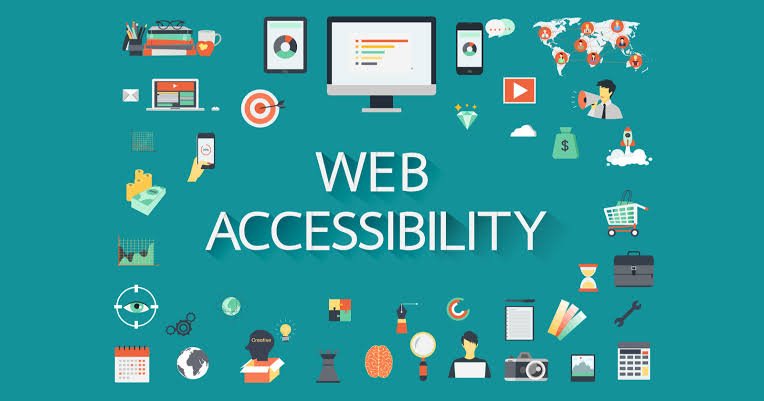
Website accessibility is about making your website usable by as many people as reasonably possible, including people with disabilities. It also encourages clearer content, more predictable navigation, and better design decisions for a wider range of visitors.
In this guide, we will explain what website accessibility means, why it matters, which improvements to prioritize, and how businesses can start making their websites more inclusive.
What Is Website Accessibility?
Website accessibility is the practice of designing and developing websites so people with different abilities can perceive, navigate, understand, and interact with them.
This includes people who use assistive technologies, such as screen readers, as well as people who navigate using a keyboard instead of a mouse.
Accessibility also helps visitors who experience temporary or situational limitations. Someone using a phone in bright sunlight may struggle to read low-contrast text. A person watching a video in a quiet office may rely on captions. Someone with a temporary hand injury may prefer keyboard navigation or voice input.
An accessible website considers these different ways of interacting with digital content.
Accessibility is not a decorative feature that can simply be switched on at the end of a project. It involves decisions about page structure, content, visual design, code, forms, media, and interactive elements.
Why Website Accessibility Matters for Businesses
Website accessibility supports a more inclusive online experience, but its benefits extend beyond a single group of visitors.
1. Help More People Use Your Website
Your website may serve customers with different abilities, devices, browsing habits, and levels of technical confidence.
Accessible navigation, readable content, and properly labelled forms can make it easier for more people to find information and complete important actions.
For a service business, this might mean being able to request a quote. For an online store, it could mean searching for a product and completing checkout.
The goal is to remove unnecessary barriers between visitors and the information or services they need.
2. Create a Better User Experience
Accessibility and usability often support each other.
Clear headings help visitors scan content. Descriptive links explain where they lead. Consistent navigation reduces confusion. Useful error messages help people correct mistakes.
These improvements can benefit visitors regardless of whether they use assistive technology.
Accessibility does not guarantee higher conversion rates, but a website that is easier to understand and operate gives visitors a better foundation for completing tasks.
3. Strengthen Your Business Reputation
People notice when a website makes an effort to communicate clearly and accommodate different needs.
An accessible experience can demonstrate that your business takes customers seriously and considers how different people interact with its services.
This should be supported by genuine design and development practices rather than vague claims that a website is completely accessible.
4. Support Legal and Compliance Efforts
Accessibility requirements depend on the country, jurisdiction, type of organization, and nature of the service being provided.
Businesses serving customers in the United States may need to consider applicable disability-discrimination laws and relevant accessibility standards. Other markets have their own rules and requirements.
The Web Content Accessibility Guidelines, commonly called WCAG, provide widely used technical recommendations for accessible web content.
Accessibility improvements are a practical step toward reducing barriers, but a checklist or automated scan alone does not establish legal compliance. If your business has specific legal obligations, obtain appropriate professional guidance.
8 Website Accessibility Improvements Every Business Should Consider
You do not need to rebuild your entire website before making progress. Begin with the areas that have the greatest impact on whether visitors can access information and complete important tasks.
1. Use Clear Headings and Logical Page Structure
Headings help visitors understand how a page is organized.
A page should have a clear main heading followed by subheadings that introduce relevant sections. Use heading levels according to their structure rather than choosing them only for their visual size.
For example, an article might use an H1 for its title, H2 headings for its main sections, and H3 headings for supporting topics.
A logical structure helps people scan the content and allows screen-reader users to navigate between headings more efficiently.
Keep headings descriptive. A phrase such as “How to Choose a Website Platform” tells readers more than a vague heading such as “More Information.”
2. Provide Alternative Text for Meaningful Images
Images can communicate important information, but not everyone can see them.
Alternative text, often called alt text, describes the relevant purpose or content of an image for people who use screen readers or when an image cannot be displayed.
For example, if an image shows a technician installing network equipment and the context makes that action important, its alt text should describe the meaningful information rather than list every visual detail.
Decorative images that add no useful information should generally have empty alternative text so assistive technologies can skip them.
Avoid stuffing image descriptions with repeated SEO keywords. The primary goal is to communicate useful information accurately.
3. Make Text Easy to Read
Readable text is essential for visitors who have low vision, reading difficulties, or are using small screens.
Use an appropriate font size, comfortable line spacing, clear typography, and sufficient contrast between text and its background.
The WCAG 2.2 Level AA contrast guidance generally calls for a contrast ratio of at least 4.5:1 for normal text and 3:1 for large text, with defined exceptions.
Do not rely on colour alone to communicate meaning. If a form field is invalid, for example, identify the error using text or another clear indicator instead of changing the border colour without explanation.
A simple design can be attractive while remaining readable and functional.
4. Ensure the Website Works With a Keyboard
Some visitors cannot use a mouse and rely on a keyboard or an alternative input device.
A website should allow users to move through interactive elements using keyboard navigation. They should be able to identify which element currently has focus and operate menus, forms, buttons, and dialogs without becoming trapped.
Check that the focus indicator is clearly visible. Also confirm that keyboard focus follows a logical order and does not disappear behind fixed headers or overlays.
A practical first test is to open your website and navigate through its main features using the Tab, Shift+Tab, Enter, and arrow keys where appropriate.
If an important button or menu cannot be reached or operated this way, it may need development work.
5. Design Accessible Forms
Forms are often where visitors complete important actions, such as requesting a quote, creating an account, or contacting a business.
However, unclear labels and confusing error messages can make these tasks difficult.
Use visible labels for form fields instead of relying only on placeholder text. Explain which fields are required, provide helpful instructions, and clearly identify errors when a submission fails.
If a visitor enters an invalid email address, the error should explain what needs to be corrected.
When a form contains several steps, help users understand where they are in the process and what information they need.
Test forms with a keyboard and, where possible, with assistive technologies. A form should be evaluated by how well people can complete it, not just how attractive it looks.
6. Add Captions and Accessible Media Controls
Videos, audio clips, and other media can contain valuable information, but not everyone can access them in the same way.
Provide accurate captions for prerecorded videos with meaningful speech or sound information. Depending on the content, transcripts and audio descriptions may also be appropriate.
Make sure media players can be operated using supported input methods and that important controls have clear names.
Avoid automatically playing audio that surprises visitors or makes it difficult to understand other content.
If your business publishes tutorials, demonstrations, or educational videos, accessible media helps more people benefit from the material.
7. Make Navigation Consistent and Predictable
Visitors should not have to relearn your website’s navigation on every page.
Use consistent menus, clear link labels, and predictable layouts. Make it easy to identify the current page and return to important sections.
Links should explain their destination. Instead of repeating “Click here” several times, use descriptive text such as “View our website development services.”
Also check menus on mobile devices. Small tap targets, disappearing navigation controls, and overlapping elements can make a website frustrating to use.
A consistent structure helps visitors understand where they are and how to move forward.
8. Test Accessibility With Real Tasks
Accessibility cannot be assessed reliably by appearance alone.
A page may look polished but still contain buttons without accessible names, incorrect heading structures, keyboard traps, or forms that screen readers cannot interpret properly.
Start with a few important tasks:
- Navigate the main menu using a keyboard.
- Find a service and follow its links.
- Complete and submit a contact form.
- Increase text size or zoom into the page.
- Review important images and their alternative text.
- Test interactive features with relevant assistive technologies when possible.
Automated tools can identify certain issues, but they do not detect every accessibility barrier. Combine automated checks with manual testing and feedback from people who use assistive technologies.
Website Accessibility and SEO: How They Work Together
Website accessibility and search engine optimization have different objectives, but they can share useful practices.
Search engines need to understand the content and structure of your pages. Visitors also benefit from logical headings, descriptive links, meaningful image descriptions, and clear content.
For example, descriptive link text helps users understand where a link leads. Proper heading structure helps readers scan an article. Relevant alternative text can communicate the meaning of an image when it contributes information.
However, accessibility should not be treated as a shortcut to better rankings. Adding alt text to every image or installing an accessibility widget does not automatically improve search performance or make a website accessible.
The best approach is to create content that works for people first while following sound technical and SEO practices.
For more guidance, visit Google Search Central for search documentation and the W3C Web Accessibility Initiative for accessibility resources.
Common Website Accessibility Mistakes to Avoid
Even businesses with good intentions can overlook important details.
Relying only on automated accessibility tools. Automated scans are useful, but some issues require manual evaluation and real user testing.
Using images of text unnecessarily. Text embedded in images may not resize or adapt as effectively as actual webpage text and may be inaccessible to assistive technologies unless alternatives are provided.
Treating alt text as an SEO field only. Alternative text should communicate the meaningful purpose of an image, not repeat keywords without context.
Using colour as the only indicator. Important states, errors, and instructions should remain understandable without colour perception.
Ignoring third-party content. Booking tools, payment widgets, embedded videos, and other external components can introduce accessibility problems even when your own page is well structured.
Assuming one accessibility plugin solves everything. Tools may offer useful features, but they cannot replace accessible code, thoughtful content, testing, and ongoing maintenance.
Making accessibility a one-time task. New content, redesigns, plugins, and interactive features can introduce new barriers. Accessibility should be part of your regular website review process.
How to Get Started With a Website Accessibility Audit
If you are unsure where to begin, focus on a small number of important pages rather than trying to review the entire website at once.
Start with your homepage, main service pages, contact form, and any pages that support purchases or customer accounts.
Step 1: Identify Important User Journeys
Write down the tasks visitors need to complete, such as finding a service, reading a policy, requesting a quote, or making a purchase.
These tasks provide a practical framework for testing accessibility.
Step 2: Run an Initial Automated Check
Use an accessibility testing tool to identify potential issues involving contrast, missing labels, page structure, and other detectable problems.
Treat the results as a starting point rather than a final verdict.
Step 3: Perform Manual Testing
Use a keyboard to navigate the site and check whether focus is visible and interactive features work properly. Review content structure and test forms.
Where practical, include testing with screen readers and other relevant assistive technologies.
Step 4: Prioritize Problems by Impact
Fix barriers that prevent visitors from accessing important information or completing essential tasks first.
For example, an inaccessible contact form may deserve more immediate attention than a minor issue on a rarely visited decorative section.
Step 5: Retest After Changes
Confirm that fixes work and do not introduce new problems. Repeat the process when you publish major changes or introduce new functionality.
For formal guidance, consult the WCAG guidelines.
Should You Hire a Professional for Website Accessibility?
Some accessibility improvements are straightforward, such as writing clearer headings or correcting missing alternative text.
Other issues may require deeper technical work. Complex menus, custom interface components, account dashboards, checkout systems, and third-party integrations can be difficult to evaluate and repair without development experience.
Professional support may be useful when your website has many interactive features, serves a broad audience, or must meet specific accessibility requirements.
When evaluating a developer or agency, ask how accessibility is incorporated into design, development, content creation, and testing. Ask whether the team evaluates keyboard access, screen-reader compatibility, forms, contrast, and interactive components.
Be cautious of promises that a single tool can guarantee complete accessibility. A credible process involves identifying barriers, implementing fixes, testing results, and maintaining the website as it evolves.
If your business is planning a new website or improving an existing one, you can explore HiveRift to learn more about website solutions that support your digital presence.
Frequently Asked Questions
What is website accessibility?
Website accessibility means designing and developing websites so people with different abilities can perceive, navigate, understand, and interact with their content and functionality.
Does website accessibility improve SEO?
Accessible design practices can support clear content structure, descriptive links, and meaningful image alternatives, which may also help search engines understand pages. However, accessibility does not guarantee higher rankings and should primarily be implemented to remove barriers for users.
What is the WCAG standard?
The Web Content Accessibility Guidelines are recommendations developed through the W3C for making web content more accessible. They organize guidance around four principles: content should be perceivable, operable, understandable, and robust.
Can an accessibility plugin make my website fully accessible?
No single plugin can reliably resolve every accessibility issue. Plugins may provide useful features, but accessible development, manual testing, appropriate content, and ongoing reviews remain important.
How often should a website accessibility audit be performed?
Review accessibility during website development, before major releases, and whenever important content or functionality changes. Periodic audits can also help identify barriers that appear over time.
Is website accessibility required by law?
Requirements depend on your location, business type, services, and applicable laws. Some organizations have specific legal obligations. Consult the relevant official guidance or a qualified legal professional to understand the requirements that apply to your business.
Final Thoughts
A website should do more than look professional. It should help people find information, understand your services, and complete important tasks without unnecessary obstacles.
Website accessibility encourages businesses to look beyond the visual design and consider how different people actually use their websites.
Start with clear headings, readable text, descriptive images, keyboard navigation, accessible forms, and meaningful testing. Address the most significant barriers first, then make accessibility part of your regular development and maintenance process.
You do not have to solve every issue in a single day. Consistent, thoughtful improvements can make your digital presence more welcoming and usable.
If you are building a new business website or reviewing your current one, visit HiveRift to explore website solutions that can support a more effective online experience.