
Cloud Backup vs. Cloud Storage: 7 Key Differences Every Business Should Know
Your business stores important files in the cloud. Invoices are uploaded, project documents are shared, customer records are updated, and employees can access their work from different devices. Everything seems organized—until someone deletes an important folder, overwrites a file, or discovers that a critical document is no longer available.
That is when an important question comes up: were those files simply stored online, or were they properly backed up?
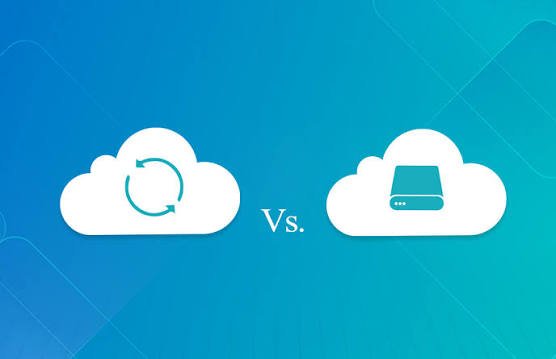
Understanding cloud backup vs cloud storage can help businesses avoid a costly misunderstanding. Both solutions keep data in the cloud, but they serve different purposes. Cloud storage makes files accessible and easier to share, while cloud backup focuses on creating recoverable copies of data.
Some services offer both capabilities, but the two should not be treated as interchangeable.
Let’s break down the differences, look at real business scenarios, and explain how to choose a solution that protects your work without making everyday operations unnecessarily complicated.
What Is the Difference Between Cloud Backup vs Cloud Storage?
Cloud storage allows users to save files on remote servers and access them through an internet connection. It is commonly used for document sharing, collaboration, file synchronization, and accessing information from multiple devices.
Cloud backup creates copies of selected files, databases, systems, or other data so they can be restored if the original information is lost, damaged, deleted, or affected by an incident.
For example, a design agency might use cloud storage to share project files with a client. Separately, it could use an automated backup service to preserve recoverable copies of those files and related business records.
The storage service supports everyday work. The backup system helps the business recover when something goes wrong.
Services such as Google Drive and Dropbox are commonly used for cloud file storage and collaboration. Dedicated backup products and cloud backup services can provide additional retention, recovery, and protection features.
The important point is to examine what a service actually does. A storage platform may offer version history, deleted-file recovery, or backup capabilities, but the availability and limitations of those features vary.
7 Key Differences Between Cloud Backup and Cloud Storage
1. Their Main Purpose Is Different
The first difference is what each solution is designed to accomplish.
Cloud storage helps people work with files. Employees can upload documents, share links, organize folders, and collaborate without sending large attachments back and forth.
Cloud backup is designed to preserve recoverable copies of information. It helps a business restore data after accidental deletion, corruption, hardware failure, or other incidents, depending on the backup configuration.
Imagine a small accounting firm.
Its employees use cloud storage to share spreadsheets, invoices, and reports. That makes everyday collaboration easier. However, if an employee accidentally overwrites an important financial spreadsheet and the available version history cannot recover the required version, the business may still face a problem.
A properly configured backup could provide another recovery option.
The practical takeaway: Use cloud storage to make working with files easier. Use a suitable backup strategy to make recovering important data possible.
2. File Synchronization Is Not the Same as Backup
This is one of the most important differences for business owners to understand.
Many cloud storage services synchronize files between devices and online accounts. When someone updates a document on a laptop, the changes may appear on other connected devices.
That is convenient, but synchronization can also reproduce unwanted changes.
Suppose an employee accidentally deletes a shared project folder. Depending on the service and its configuration, that deletion may synchronize across connected devices. If a malicious application encrypts files that are being synchronized, damaged or encrypted versions may also propagate.
Synchronization is useful for keeping files consistent. It does not automatically guarantee that a clean, recoverable copy will remain available.
Backup systems can provide additional protection through scheduled copies, retention policies, versioned recovery points, and separate storage locations.
However, backups also require proper configuration. If the backup process captures corrupted data and retains no usable earlier version, recovery may still be difficult.
For important business information, understand how both systems handle deletions, overwrites, ransomware incidents, and retention periods.
3. Recovery Options Can Be Very Different
Cloud storage services may offer a recycle bin, version history, or the ability to restore earlier versions of a document.
These features can be extremely useful when someone makes a small mistake.
Dedicated backup systems often provide broader recovery capabilities. Depending on the product, a business may be able to restore individual files, entire folders, databases, application data, or supported systems to a previous recovery point.
Consider a business website.
If an employee deletes an image, restoring that individual file may be sufficient. But if a website update breaks the database, several application files become corrupted, or a hosting issue affects the entire site, the business may need a more comprehensive recovery process.
Before choosing a solution, ask:
- Can I restore individual files and complete folders?
- Can I recover an earlier version of a file?
- How far back do the available recovery points go?
- Can I restore data to a separate location?
- How long does a typical recovery take?
- Are application databases and configurations included?
Do not assume that a provider can restore everything simply because it stores your files online.
4. Retention Policies Affect How Long Data Remains Recoverable
Retention determines how long stored or backed-up information remains available.
Cloud storage platforms may retain deleted files or earlier versions for a limited period. Those limits depend on the service, account plan, administrative settings, and file activity.
Backup systems can offer configurable retention policies that preserve recovery points for specific periods. Some businesses may need short-term recovery for everyday mistakes, while others must preserve selected records for much longer.
For example, a software development company might need to recover yesterday’s project files, but it may also need access to older versions from before a major release.
A backup plan should reflect those needs rather than relying on whatever default settings happen to be enabled.
Think about the types of data you manage, how frequently it changes, and how long older copies remain useful. Also check whether backup copies expire automatically, whether deleted source files are removed from future backups, and whether long-term retention creates additional costs.
For regulated or contract-sensitive records, establish retention policies with appropriate legal and compliance guidance.
5. Security and Recovery Protection Need Different Considerations
Cloud storage and cloud backup both need security controls, but protecting everyday access is not the same as protecting recovery copies.
A storage platform may offer access permissions, account authentication, encryption, and activity monitoring. These features help protect files from unauthorized access.
A backup strategy should also consider what happens if the original account is compromised.
If an attacker gains administrative access to both the primary data and its backups, they may be able to delete backup copies or alter retention settings. That could make recovery much harder.
Businesses should consider additional safeguards such as:
- Multi-factor authentication for administrative accounts
- Restricted access to backup management tools
- Separate backup credentials where appropriate
- Immutable or write-protected backup copies where supported
- Monitoring for unusual deletion or configuration activity
- Regular recovery testing
The CISA ransomware guidance discusses the importance of maintaining backups and protecting recovery capabilities.
No single security feature guarantees protection. The objective is to make sure an incident affecting the original data does not automatically destroy every available recovery option.
6. Pricing Depends on More Than Storage Space
Cloud storage and backup services may both charge according to the amount of data stored, but their pricing structures can differ.
A cloud storage plan may include a certain amount of space, collaboration features, and user accounts. A backup service may charge based on protected devices, data volume, retention, storage destination, or recovery-related features.
Additional expenses can include data transfer, retrieval fees, longer retention, premium security features, and management time.
For example, a business storing a large collection of archived documents might have different requirements from a company backing up a frequently updated website database.
Before comparing prices, estimate:
- The amount of data you need to protect
- How quickly that data is growing
- How frequently backups should run
- How long recovery points should be retained
- How many devices, applications, and databases need protection
- Whether restoring large amounts of data incurs additional fees
Also consider the cost of downtime. A slightly more expensive backup arrangement may be worthwhile if it helps the business restore essential systems more quickly.
The cheapest plan is not necessarily the most economical option when something goes wrong.
7. Their Role in Business Continuity Is Different
Cloud storage supports daily productivity. Backup supports recovery. Both can contribute to business continuity, but neither replaces a complete continuity plan.
Imagine an online retailer that depends on its website, customer orders, product catalogue, and inventory database.
Cloud storage may help employees share product images and marketing documents. Backups may preserve copies of the website database and other critical information.
If the site fails, the business still needs a documented procedure for restoring the application, checking data integrity, reconnecting services, and confirming that orders can be processed correctly.
This is why businesses should define two important recovery targets:
Recovery Point Objective (RPO): How much data loss, measured in time, can the business tolerate? If the RPO is one hour, the recovery strategy should aim to limit data loss to approximately that period.
Recovery Time Objective (RTO): How quickly must the business restore a system or service after an interruption?
These targets help determine backup frequency, retention, infrastructure requirements, and recovery procedures.
A company that can tolerate a day without a noncritical internal report may need a different plan from an online business that depends on continuous order processing.
Which Option Does Your Business Need?
For many businesses, the answer is both—not one or the other.
<box border=”1px solid” radius=”lg” padding={3} gap={3}>
<title size=”md”>Choose Cloud Storage If You Need To</title>
– Share documents with colleagues or clients.
– Access files across multiple devices.
– Collaborate on working documents.
– Organize files for everyday business operations.
<divider color=”subtle” />
<title size=”md”>Choose Cloud Backup If You Need To</title>
– Recover accidentally deleted or corrupted information.
– Preserve earlier versions of important files.
– Restore supported systems, databases, or website data.
– Keep recovery copies separate from everyday file access.
<divider color=”subtle” />
<title size=”md”>Use Both If You Need To</title>
– Keep business files accessible while maintaining independent recovery options.
– Protect important documents, applications, and databases.
– Support daily collaboration and prepare for unexpected incidents.
</box>
The best combination depends on your data, business risks, recovery requirements, and budget.
How to Build a Practical Cloud Backup Strategy
Buying a backup subscription is only the beginning. You also need to decide what to protect, how often to create copies, and how to restore them when necessary.
Step 1: Identify Your Critical Data
List the information your business cannot easily replace. This might include customer records, website files, databases, financial documents, employee information, and essential application configurations.
Prioritize data based on its business value and the consequences of losing it.
Step 2: Choose an Appropriate Backup Schedule
Frequently changing information may require more frequent backups than static documents.
Choose a schedule that reflects your recovery point objectives. Confirm that the service can complete backups within the available time and handle changes in data volume.
Step 3: Keep More Than One Recovery Option
Avoid depending entirely on a single account or storage location. Consider keeping multiple copies, including at least one copy that is isolated or protected against modification and deletion.
The appropriate design depends on your risk profile, available resources, and recovery requirements.
Step 4: Protect Access to Backup Systems
Use strong authentication, restrict administrative permissions, and review who can delete recovery points or change retention settings.
A backup that is easy for an unauthorized person to destroy is not a dependable recovery strategy.
Step 5: Test the Restoration Process
Do not wait for an emergency to discover that a backup is incomplete or difficult to restore.
Periodically restore selected files, test application recovery, verify database integrity, and document the steps involved. A successful backup job is encouraging, but a successful restoration is the stronger evidence that the system works.
Step 6: Monitor Costs and Backup Results
Review failed jobs, missing devices, storage growth, retention settings, and recovery-test results.
Assign someone responsibility for investigating failures. If no one checks whether backups are working, a problem may remain unnoticed until recovery becomes urgent.
For businesses that also need managed infrastructure or application support, HiveRift provides information about its software and digital services.
Conclusion
Cloud backup vs cloud storage is not a choice between two identical services. Cloud storage helps your team access and share files, while cloud backup provides additional ways to recover information after data loss or damage.
A storage platform may include useful recovery features, but you should verify exactly what it protects, how long copies remain available, and whether it can restore the data your business depends on.
Start by identifying your most important information, setting realistic recovery targets, and selecting a backup solution that matches those needs. Then test the restoration process regularly.
Your business does not need the most complicated cloud setup. It needs one that keeps daily work convenient and gives you a dependable way to recover when the unexpected happens.
Frequently Asked Questions
1. What is the main difference between cloud backup and cloud storage?
Cloud storage makes files available for access, sharing, and collaboration. Cloud backup creates recoverable copies of data to help restore information after deletion, corruption, or other incidents.
2. Is Google Drive a backup solution?
Google Drive is primarily a cloud storage and collaboration service. It includes certain recovery features, but those features should not automatically be treated as a complete independent backup strategy. Check the current retention, version history, and recovery capabilities for your account.
3. Can cloud storage replace cloud backup?
Not necessarily. Some storage services offer versioning and recovery features, but those may not cover every file, application, retention period, or incident. Businesses should verify whether their storage setup meets their actual recovery requirements.
4. How often should a business back up its data?
The schedule depends on how frequently information changes and how much data loss the business can tolerate. Critical databases may need frequent backups, while less frequently updated documents may require a different schedule.
5. Does cloud backup protect against ransomware?
It can help, provided usable backup copies remain available and can be restored. Protected or immutable copies, restricted access, suitable retention, and tested recovery procedures can improve resilience. No backup approach eliminates every risk.
6. Is cloud backup expensive for small businesses?
Costs vary with data volume, backup frequency, retention, devices, and recovery requirements. Small businesses can often start with their most important data and expand coverage as their needs grow.
7. How can I check whether my cloud backups are working?
Review backup reports, investigate failed jobs, confirm that important systems are included, and periodically restore sample files or systems. Testing recovery is essential because a completed backup job alone does not prove that all required data can be restored.